Holiday guests do not break a home network. They expose the weak spots that were already there. The spare bedroom has one bar. The patio camera drops whenever someone streams a movie. The printer lives on an old network name. A relative asks for the Wi-Fi password, and suddenly you are reading a label behind a cabinet.
October is early enough to fix those problems without troubleshooting while dinner is on the table. You do not need the fastest plan your internet company sells. You need good placement, clear coverage, and a simple way for guests to connect.
Write down what is coming into the house
Start with the internet plan and the modem or gateway model. You do not need to memorize technical details. Record the speed tier you pay for, where the provider's line enters the house, and which box creates the Wi-Fi network.
Run one speed test near that box with a modern phone or laptop. Then run the same test in the guest room, at the TV, and on the patio if people use it. The exact number matters less than the pattern. If the speed is good beside the router and falls apart across the house, the problem is coverage. A more expensive plan will deliver a faster signal to the same bad spot and still leave that spot weak.
If the speed is poor even beside the router, restart the modem and test again. If it stays poor, call the provider before buying network equipment.
Fix placement before buying hardware
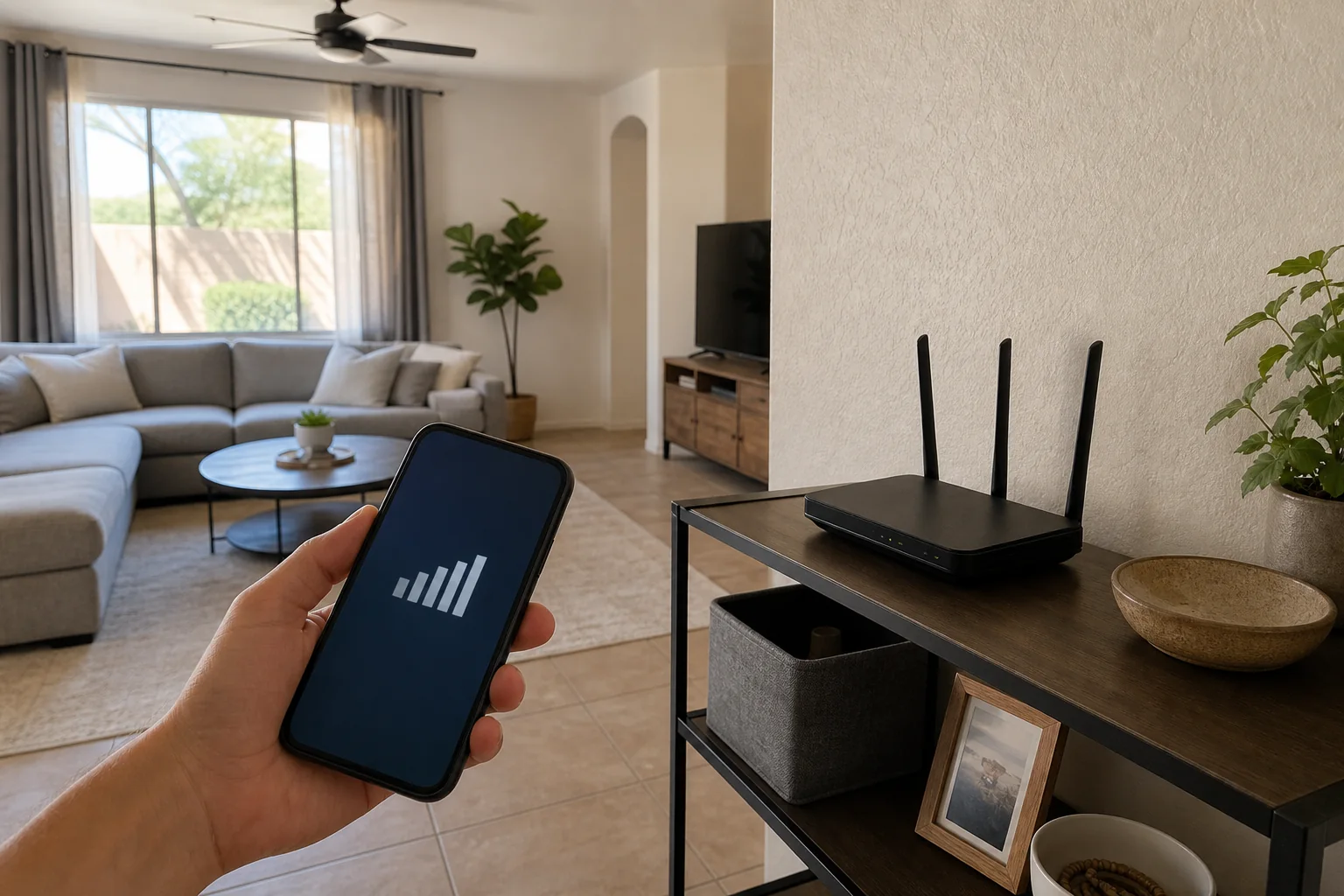
Wi-Fi likes height, open space, and a central location. It does not like metal cabinets, entertainment centers, mirrors, aquariums, masonry, or being tucked on the floor behind a sofa. Phoenix homes add stucco, block walls, foil-backed insulation, and long single-story layouts to the problem.
Move the router a few feet into the open and test again. Put it on a shelf instead of the floor. Keep it away from the electrical panel and big appliances. If the provider installed it at one far corner of the house, a longer cable or a wired access point may help more than another wireless box.
Do not hide network gear just because the blinking lights are ugly. A small ventilated shelf in the right place works better than a beautiful closed cabinet that traps heat and blocks signal.
Use a guest network on purpose
Most current routers can create a separate guest network. Turn it on before people arrive, give it a clear name, and use a password you are comfortable sharing. Put the name and password on a card in the guest room or save it as a QR code.
The guest network keeps visitors off the part of your network where computers, storage devices, cameras, and smart-home controllers live. It also gives you a password you can change later without reconnecting every device in the house.
Test it with your own phone. Make sure it reaches the guest room and can get online. If guests need to cast to a TV or use a printer, test that specific task. Some guest networks deliberately block access to local devices, which is good for privacy but can be confusing if you expect casting to work.
Check the devices that cannot tell you what is wrong
A phone shows signal bars. A doorbell, camera, thermostat, or streaming stick usually just says offline. Check those fixed devices one by one after you change router placement or settings.
Outdoor cameras are the usual trouble spot. The camera may be only twenty feet from the router, but the signal has to cross a block wall, foil insulation, and stucco before it gets there. If a camera disconnects repeatedly, do not keep replacing the camera. Test the network at that exact location. A wired connection or properly placed access point is often the durable answer.
The same rule applies to a patio TV, detached garage, or back bedroom. Measure the place where the device lives, not the center of the room.
Mesh is useful, but placement still matters
A mesh system can help a long house, but each node needs a good connection back to the main router. Putting a node inside the dead zone gives it the same bad signal your phone already has. Place it between the router and the problem area, then test both sides.
A wired connection between access points is better when the house allows it. It keeps the network stable when several people stream, join video calls, or use cameras at the same time. Running that cable cleanly is often the handyman half of the Wi-Fi job: choosing a route, mounting the access point, and keeping the wire out of sight.
Update carefully, then stop changing things
Check the router's app or admin page for a firmware update. Install it while you have time to recover, not the morning guests arrive. Confirm the network name, guest network, and important smart devices still work afterward.
Do not use holiday prep as a reason to rename the main network unless the current setup is truly broken. A new name means reconnecting every camera, switch, speaker, thermostat, and TV. That is a bigger job than it sounds. Keep the working pieces stable and change only what solves a measured problem.
Make the restart obvious
Label the modem and router. Note which plug restarts which box. If they must be restarted, power off both, start the modem first, wait for it to reconnect, then start the router. A house sitter or family member should not have to guess.
Take a photo of the labels and save it with the internet provider's support number. That five-minute step is more useful than a drawer full of old cables.
A holiday Wi-Fi check is mostly observation: test four or five places, move the router if it is hidden, turn on the guest network, and verify the devices that matter. Buy equipment only after the tests show where the gap is.
If the solution needs a mounted access point, a clean cable route, help sorting a mesh system, or a camera that will not stay connected, I handle the network setup and the physical install in one visit. HandyMack serves the Phoenix North Valley, Peoria, Surprise, Sun City, and Glendale.